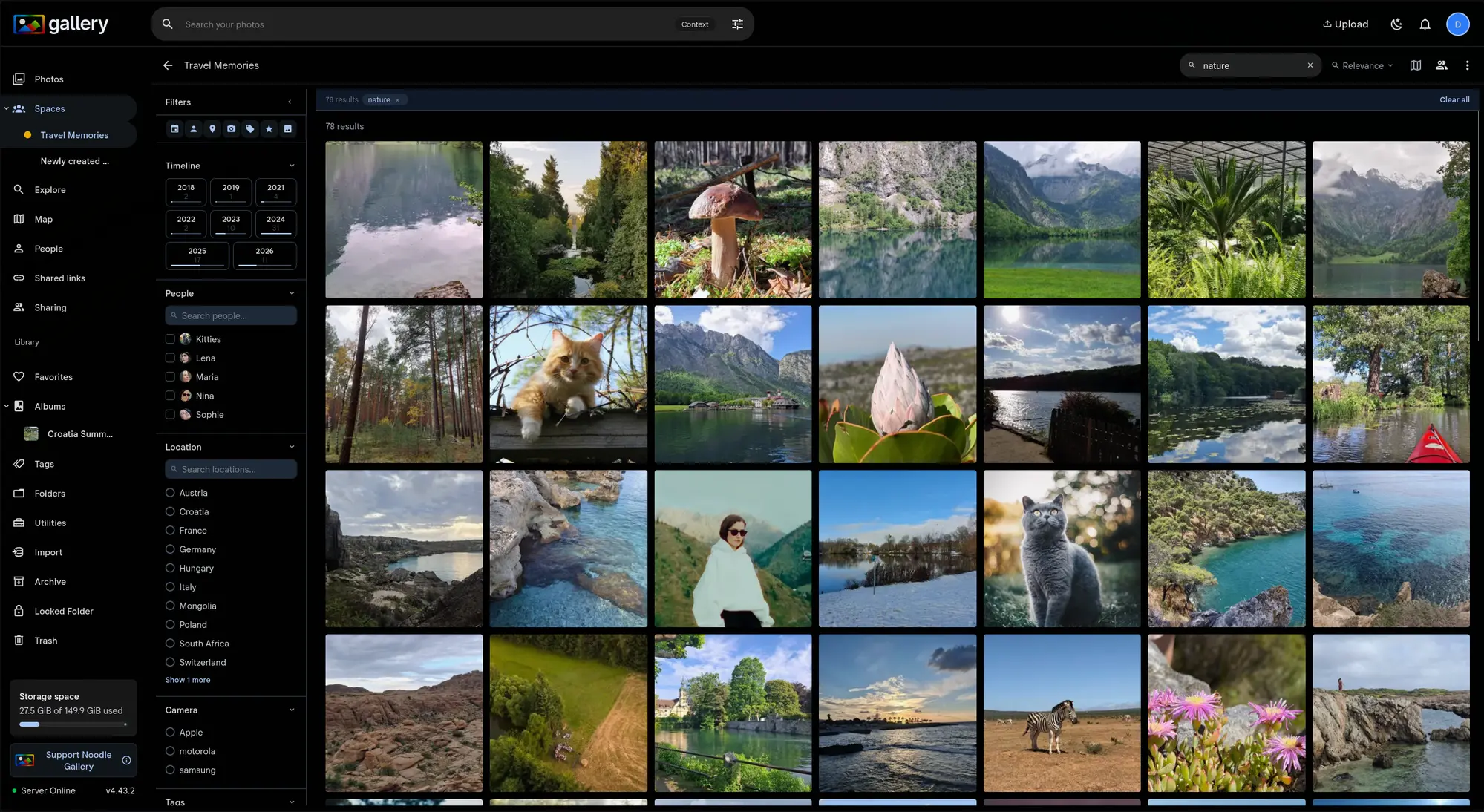
CLIP smart search ranks by visual similarity. That is what you want when you are after the closest match, and the wrong thing when you are trying to work out when something happened. Searching "birthday cake" should let you ask for the most recent ones just as easily.
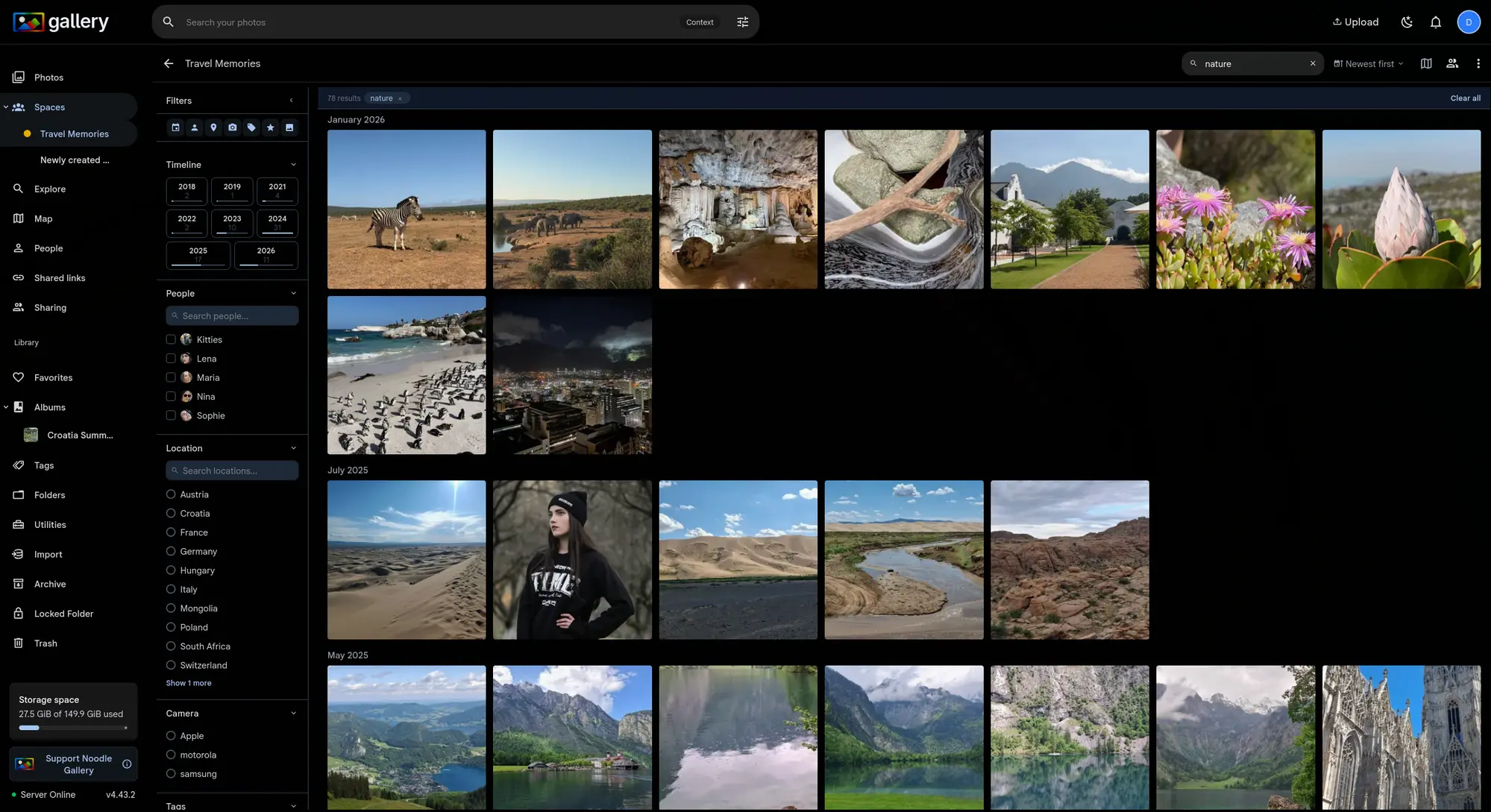
A sort dropdown sits next to the search bar: Relevance (the default, highest similarity first), Newest and Oldest. Switching modes reorders the result set in place, without re-running the query.
Two-phase recall, then sort
Date-sorted results use a two-phase CTE. The first phase recalls the top 500 matches by vector similarity; the second re-orders that set chronologically. You still see only photos that match your query, arranged by date instead of by how confident CLIP is. It is one round trip, and pagination stays stable across sort changes.
Date groups and infinite scroll
Newest and Oldest group results by month: January 2026, May 2020, and so on. Infinite scroll takes over as you approach the bottom of the list, so a big result set never turns into pagination clicks.
This works on the main timeline (/photos) and inside any Shared Space, with the same sort controls and the same date grouping. Smart search on /photos reaches into spaces you have pinned to your timeline, so one query covers the lot.
A relevance threshold for filtered searches
Combine a text search with metadata filters, say "forest" narrowed to one country, and some results match the filter while having almost nothing to do with the query. CLIP returns every photo in the filtered set, ranked by similarity, so the worst matches still show up.
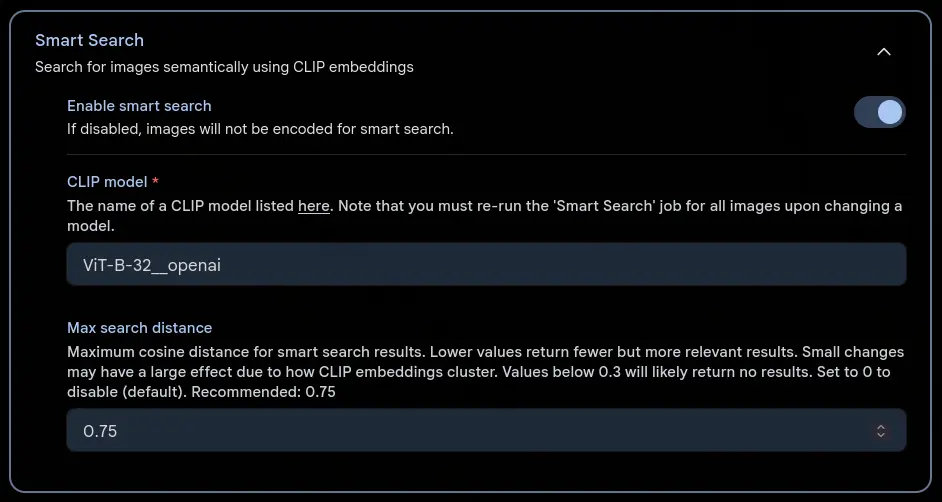
The Max Search Distance admin setting adds a hard cutoff. Results above the configured cosine distance are dropped before pagination, so a search returns relevant photos or returns nothing.
Tuning the threshold
The setting lives in Administration → Machine Learning → Smart Search. Values are cosine distances between 0 (identical) and 2 (opposite). Start at 0.75. Drop it to 0.5 and only strong visual matches survive; raise it to 1.0 and weaker matches get through, which suits broad, abstract queries.
Two things worth knowing. CLIP embeddings cluster tightly, so a small change in the threshold can swing result counts a long way: that is normal. And different CLIP models produce different distance distributions, so retune after you switch model. Text-to-image searches run looser than image-to-image, so a threshold tuned for text is permissive enough for both.
The default is 0, which disables the cutoff until you opt in.