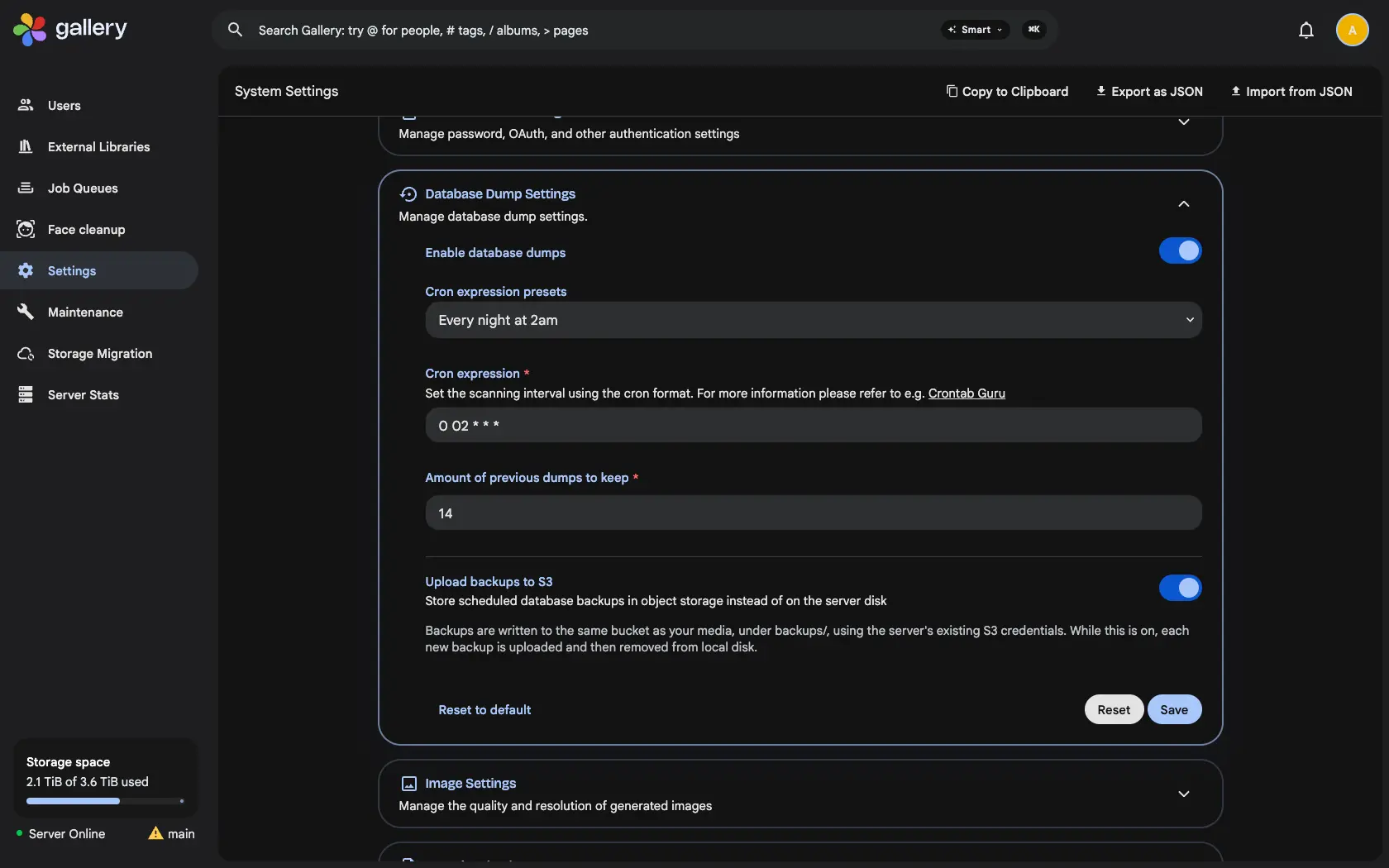
On a server that keeps its photos in S3, scheduled database backups go to the same bucket, so losing the server's disk no longer takes the backups with it.
Gallery writes a database backup every night. Until now it went to the same disk as the server. Your photos may be safe in object storage, but the database that knows your albums, people, Spaces and edits lived on one disk with every backup of it. If that disk died, they went together.
One switch
On a server already running the S3 storage backend, go to Administration › Settings › Database Dump Settings and turn on Upload backups to S3. Gallery reuses the bucket, credentials, region and endpoint it already has, so there is nothing new to configure and no new secret in the database. On a server that stores photos on disk, the switch does not appear.
Written safely, then moved
Each backup is first written to local disk under a temporary name, renamed once it is complete, uploaded to the bucket under backups/, and only then deleted locally. A dump that stops half way can never be mistaken for a usable backup, and a backup whose upload failed is retried on the next run. The usual retention setting keeps the last 14.
Restore from the bucket
The database dump settings and the restore picker list the backups in your bucket, so restoring works the same as before. If you want S3 lifecycle rules just for your backups, scope them to the backups/ prefix and your photos are left alone.