Your whole library, three levels deep
The default timeline shows every photo in every day bucket, which works well for a month of pictures. For a library that spans years, scrolling thousands of day-level rows to reach 2019 is a different story. Timeline grouping puts a Years / Months / All switcher at the top of every timeline.
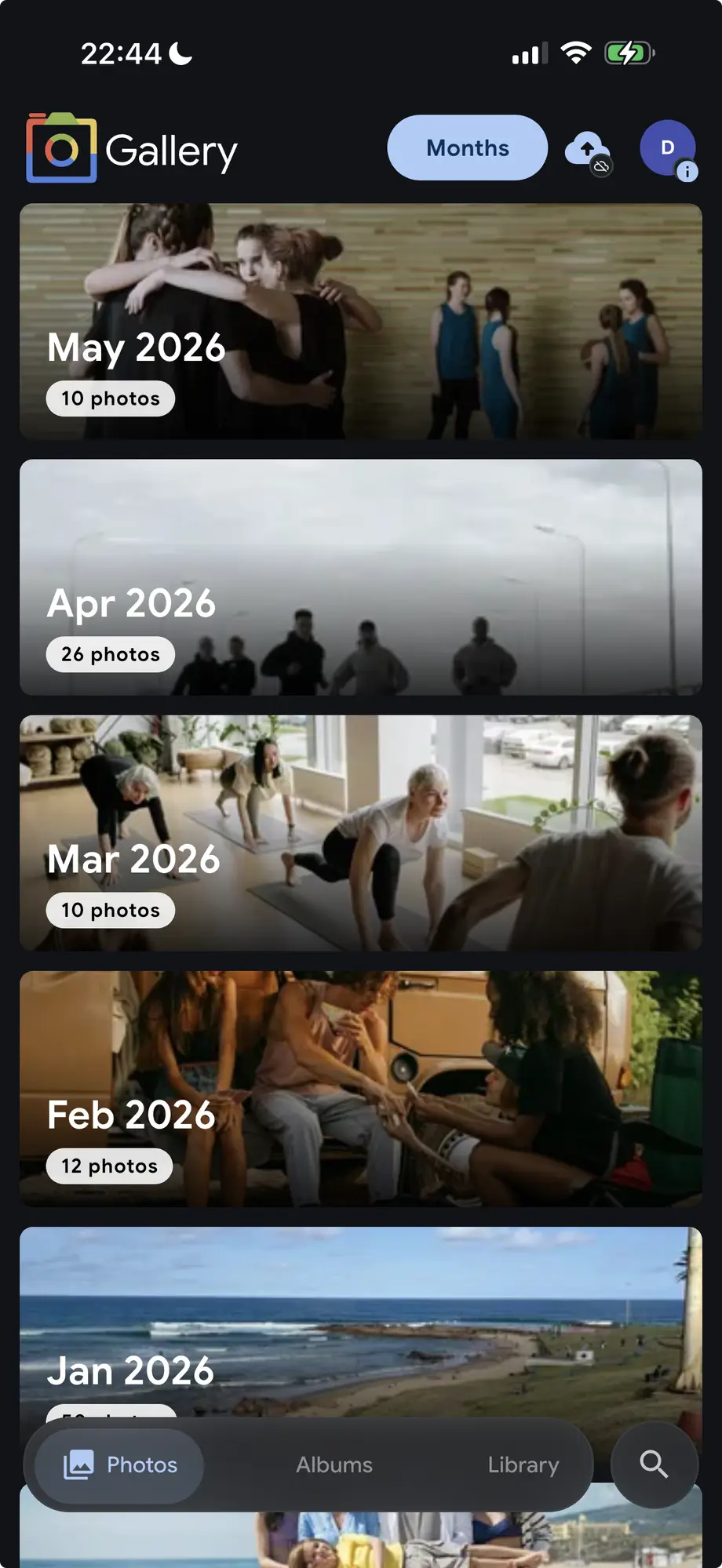
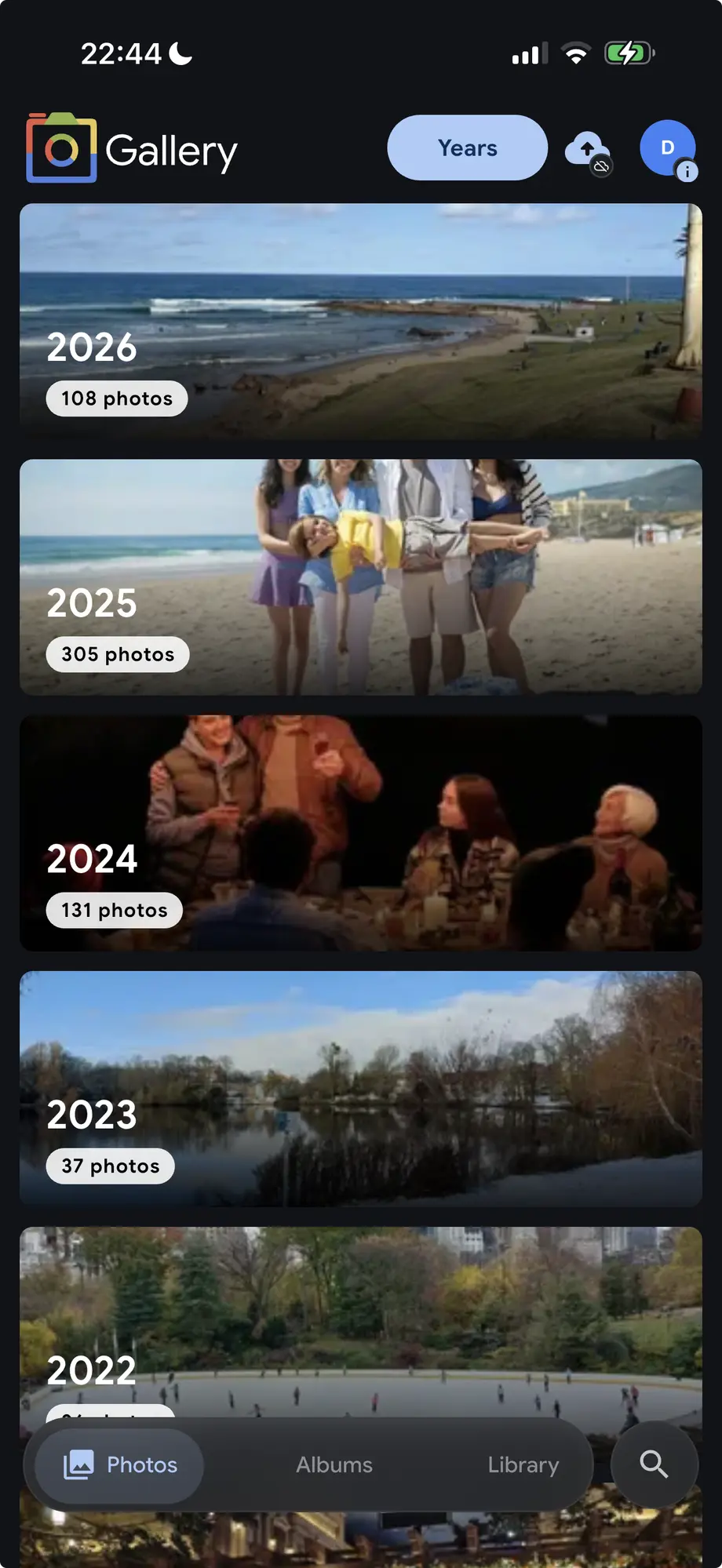
Years collapses the grid into full-width cards, one per year, each with a representative cover photo and a count badge. Months does the same at a finer grain. All puts every day back in the standard dense grid.
Zoom in, scroll freely
Tapping a year card applies no date filter. It zooms into that year and switches to Months, so you can scroll through all twelve months with the rest of the archive still there. Tap a month card from there and you land in All mode, anchored at that month.
Switching between Years, Months and All preserves your scroll position. Look at March 2022 in All mode, switch to Months, and the viewport anchors to the March 2022 card instead of jumping to the top.
On every timeline in Gallery
The switcher is on Photos, each Shared Space, individual albums, the People detail pages, the Map timeline below the map, Archive, Favorites, Tags, Folders, and the gallery viewer itself. Same control, same place, on every view that shows photos in time order.
That includes scoped timelines. Open a Space and group by years to see how active a shared collection has been. Open a person's page and group by months to scan when you photographed them most.
The same on mobile
On iPhone and Android the switcher lives in the app bar at the top of the Photos tab, a compact pill selector that stays visible while the grid scrolls beneath it. Mobile Map shows the Months switcher below the map panel, so you can browse geotagged photos month by month on the same screen as the pin clusters.
The scrubber on the right edge knows the active grouping too. In Years mode it labels the major jump points by year; in Months it lists months. Drag it to jump, tap a year bucket to zoom in.