Your whole library, three levels deep
The default timeline shows every photo in every day bucket. That works well for a month's worth of pictures. For a library that spans years, scrolling through thousands of day-level rows to reach 2019 is a different story. Timeline Grouping adds a Years / Months / All switcher to the top of every timeline.
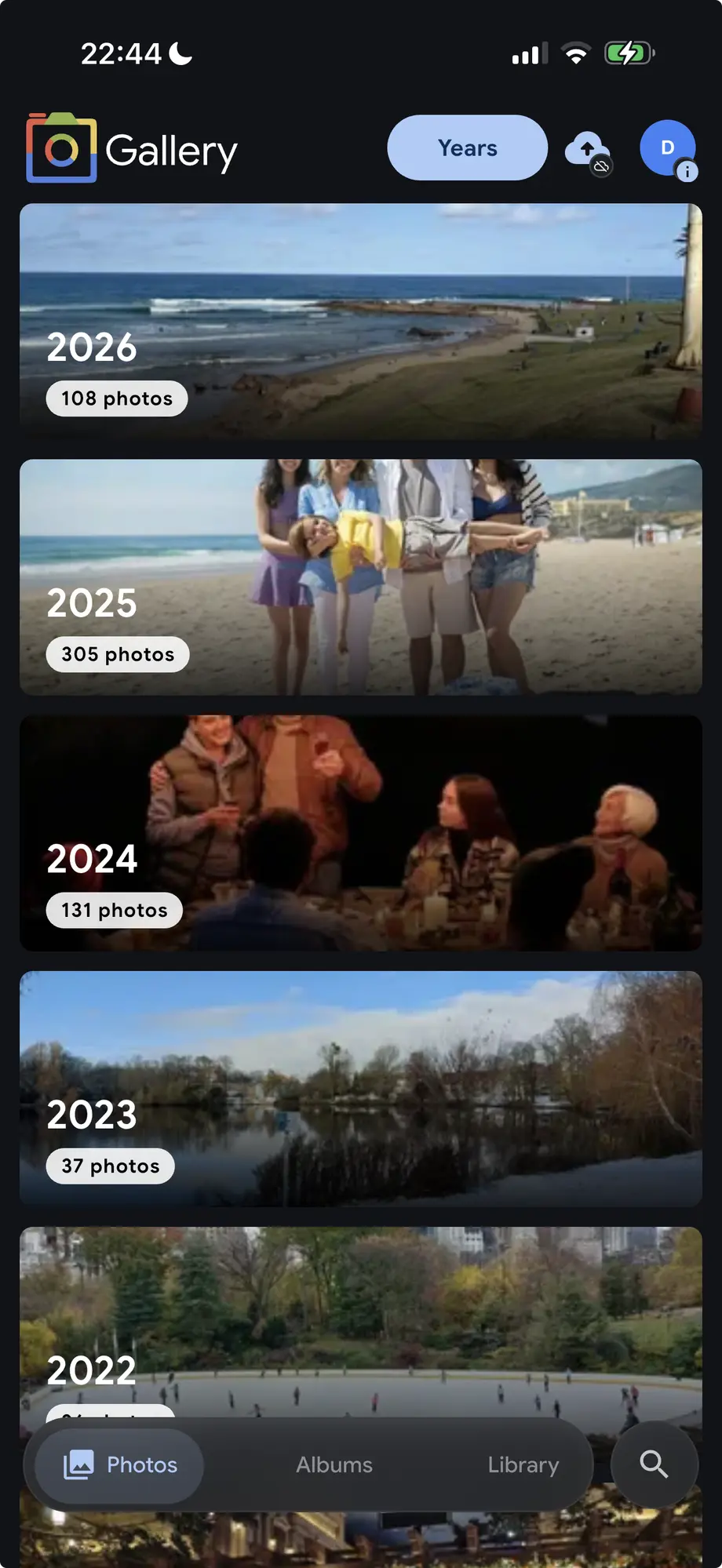
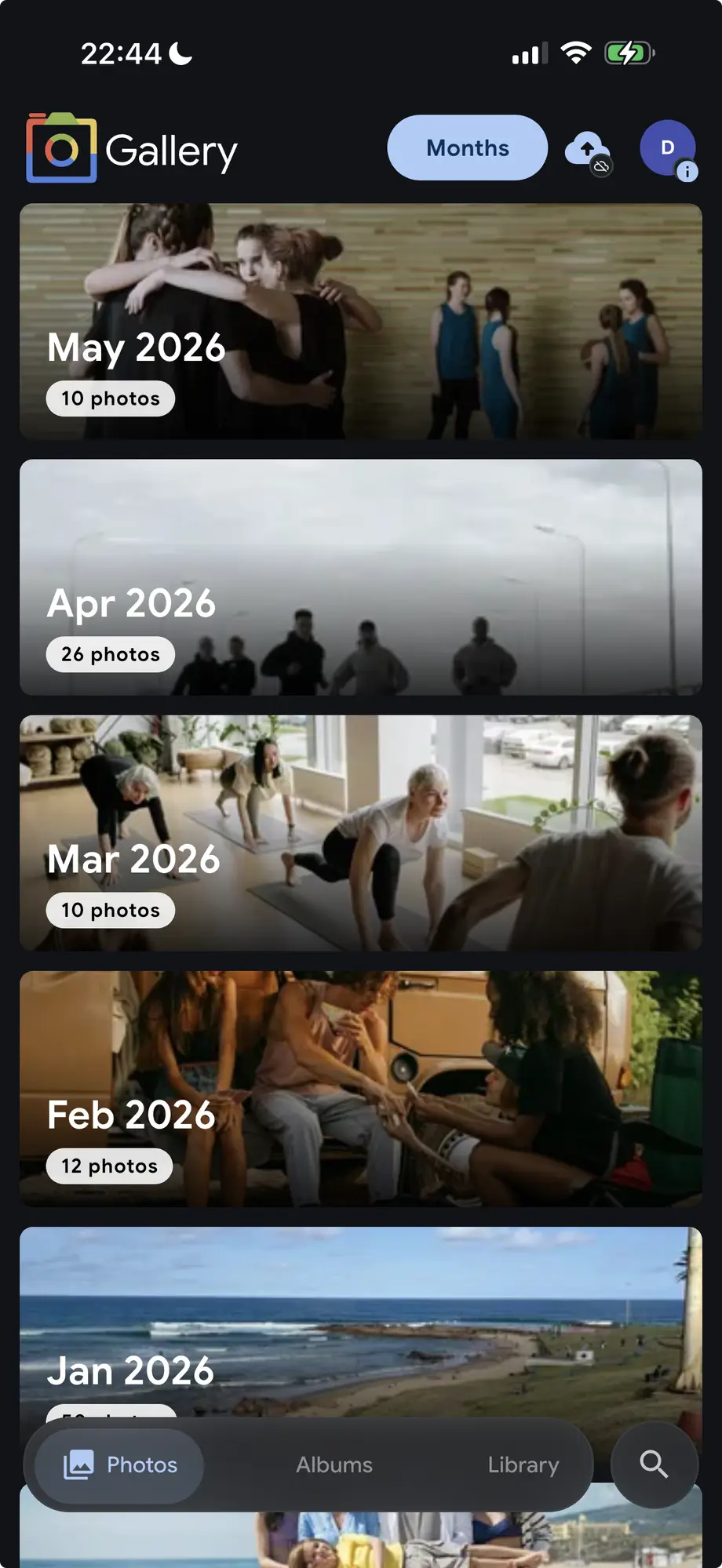
Switch to Years and the grid collapses into full-width cards — one per year, each showing a representative cover photo and a count badge. Switch to Months and the same idea applies at a finer grain. Switch back to All and every day is visible again with the standard dense grid. Three levels, one control.
Zoom in, scroll freely
Tapping a year card in Years mode doesn't apply a date filter — it zooms into that year and switches to Months view so you can scroll through all twelve months without the rest of the archive disappearing. Tapping a month card from there drops you into All mode anchored at that month. Every level in the hierarchy is a starting point, not a gate.
Switching between Years, Months, and All also preserves your scroll position. If you are looking at March 2022 in All mode and switch to Months, the viewport anchors to the March 2022 card instead of jumping back to the top.
Every timeline, not just Photos
The switcher is on every timeline in Gallery — Photos, each Shared Space, individual Albums, the People detail pages, the Map timeline below the map, Archive, Favorites, Tags, Folders, and the gallery viewer itself. There is no separate "overview" mode tucked away on one page; it is the same control, in the same place, on every view that shows photos in time order.
That includes scoped timelines. Open a Space and group by years to see at a glance how active a shared collection has been over time. Open a person's page and group by months to scan when you photographed them most.
The same on mobile
On iPhone and Android the switcher lives in the app bar at the top of the Photos tab — a compact pill selector that stays visible while the photo grid scrolls beneath it. The Map view on mobile also shows the Months switcher below the map panel, so you can browse geotagged photos month by month on the same screen as the pin clusters.
The mobile scrubber on the right edge of the timeline is aware of the active grouping too. In Years mode it labels the major jump points by year; in Months it lists months. Drag it to jump, tap a year bucket to zoom in — the two controls work together.